An NFC Alarm You Stop by Tapping a Tag
Stick a small NFC tag somewhere you have to walk to, like the bathroom or the kitchen. When the alarm rings, it keeps ringing until you hold your iPhone to that tag.
AlarmK is a mission alarm app for iPhone, and the NFC tag mission is one of its twelve missions. The alarm keeps ringing until you scan the tag you registered for it.
Free on the App Store. No in-app purchases, no ads, no account. Requires iOS 26 or later.
Free on the App Store · Requires iOS 26 or later · On Android? Get it on Google Play (Android 10 or later). The Android app has an NFC tag mission too; the steps below describe the iPhone app.
Allow System alarm (AlarmKit) before saving. New alarms cannot be saved or turned on without this permission. With it, alarms ring through Silent mode and Focus. Check Alarm readiness at the top of the app's Settings tab.
What an NFC alarm is
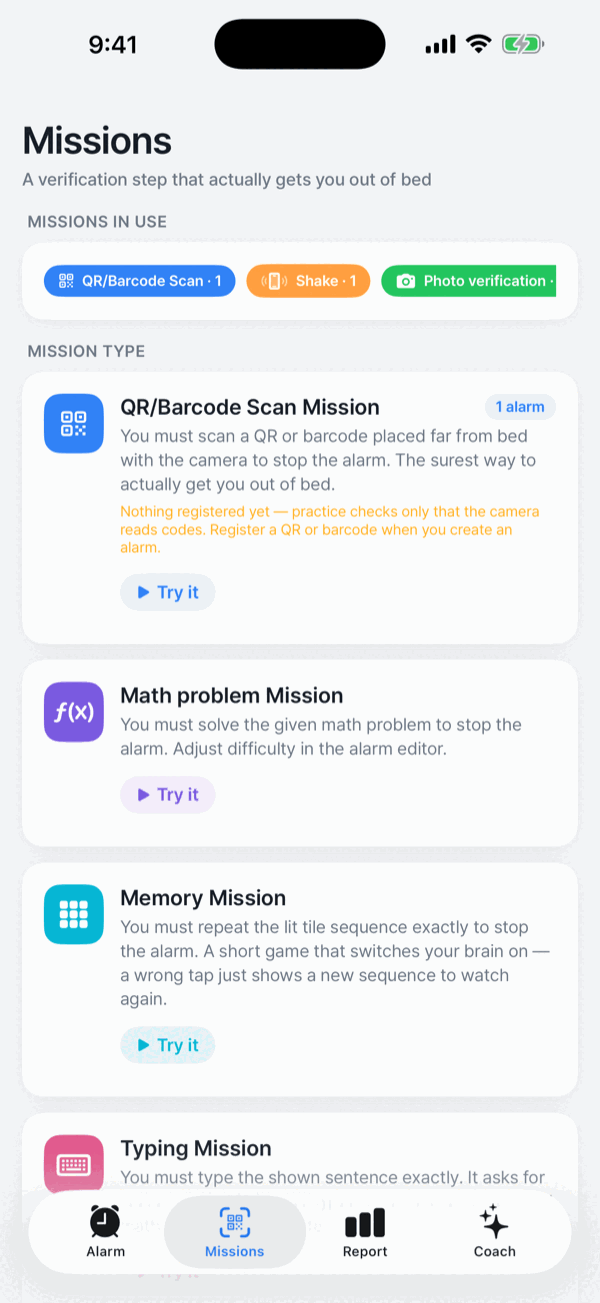
An NFC tag is a small sticker with a chip that a phone reads when you hold it close. It has no battery. In AlarmK you register one tag for an alarm, and in the morning the mission ends only when your iPhone reads that same tag.
The idea is the same as a QR code across the room: the alarm ends where the tag is, not where you are lying. There is no camera involved, so you do not have to aim at anything, and the light in the room does not matter.
Which NFC tags work
- NTAG213, NTAG215 or NTAG216. These are common NFC stickers, and the type the app asks for. Any of the three works. They differ in how much data they can store, and the mission does not use that data.
- Not MIFARE Classic. Many door-lock and transit stickers use MIFARE Classic, and iPhone apps cannot read them. If nothing happens when you hold a tag to your iPhone, this is the likely reason.
- Not a tag that changes its ID. Some tags give a different ID each time they are read. AlarmK cannot register those and tells you so.
AlarmK reads only the tag's unique ID. It never reads or writes the data stored on the tag, so a blank tag is fine and nothing on it is changed. When you buy tags, look for NTAG213, NTAG215 or NTAG216 in the product name or description.
How to set it up in AlarmK
- In the alarm editor, tap Add mission and choose NFC tag.
- Tap Register tag, then Scan tag, and hold the top of your iPhone near the tag. iOS shows its own scan sheet while it reads.
- When you see Tag registered, tap Use this tag. Each alarm has its own tag.
- Stick the tag somewhere you have to get up to reach, like the bathroom or the kitchen.
- Tap Try this mission and scan the tag once where it is stuck. Nothing rings and nothing is recorded.
- Save the alarm. An alarm with an NFC tag mission cannot be saved until a tag is registered.
The mission needs no permission and has no difficulty levels. When the alarm rings, tap Scan tag and hold your iPhone near the tag.
Where to put the tag
Pick a spot you have to stand up and leave the bedroom to reach, and one that is safe to walk to half-asleep: the bathroom mirror, the kettle or coffee machine, the inside of the front door. Avoid stairs, balconies and anywhere you would have to climb or stretch.
What it cannot do
- One tag per alarm. Only the registered tag turns the alarm off, so a spare tag in a drawer does not help unless you register it with Change.
- MIFARE Classic and ID-changing tags cannot be used, as above.
- A lost tag means registering a new one. Open the alarm, tap the NFC tag mission and tap Change.
- On a new iPhone, the tag's ID comes with you only through iCloud Keychain. It is stored in Keychain and syncs end-to-end encrypted; with iCloud Keychain off, register the tag again.
- If the tag cannot be scanned in the morning, Emergency stop is the way out. It starts with a 30-second wait while the alarm keeps ringing, then five math problems followed by 50 shakes. It is recorded as an emergency stop, not a completed mission.
An alarm is an aid, not a certainty. AlarmK is built to reduce the situations where an alarm cannot ring, but it cannot prevent physical failures: a powered-off phone, a drained battery, a denied permission. No alarm app can. For anything that really matters, set a backup alarm in the system Clock app too.
Combine it with another mission
A tag gets you out of bed, but it does not make you think. If you tend to scan the tag and go back to bed, add a second mission after it, such as a math problem or typing. One alarm takes up to five missions, done in order, and keeps ringing until the last one is done. See the thinking missions.
Frequently asked questions
What NFC tag do I need for AlarmK?
An NTAG213, NTAG215 or NTAG216 sticker. Door-lock and transit stickers that use MIFARE Classic cannot be read by iPhone apps, and a tag that gives a different ID each time it is read cannot be registered.
Does the NFC tag mission need a permission?
No. AlarmK does not ask for a permission for it. iOS shows its own scan sheet while a tag is being read.
Can one alarm accept more than one tag?
No. Each alarm has one registered tag, and only that tag turns it off. To use a different tag, tap Change on the NFC tag mission and register the new one.
Does AlarmK write anything to the tag?
No. It reads only the tag's unique ID and never reads or writes the data stored on the tag.
What if I lose the tag?
Open the alarm, tap the NFC tag mission and tap Change to register a new tag. On a morning when the tag cannot be scanned, Emergency stop is the way out: a 30-second wait while the alarm keeps ringing, then five math problems and 50 shakes. It is recorded as an emergency stop, not a completed mission.
Will my tag still work on a new iPhone?
Yes, if iCloud Keychain is on. The tag's ID is kept in Keychain and syncs through iCloud Keychain, end-to-end encrypted. With iCloud Keychain off it stays on the old iPhone, and you register the tag again on the new one.
Is AlarmK free?
Yes. AlarmK is free on the App Store with no in-app purchases, no ads and no account to create. It requires iOS 26 or later.
Free on the App Store · Requires iOS 26 or later
Written for AlarmK 1.8.2. Last updated 17 November 2026.