An Alarm for Heavy Sleepers Who Switch It Off Without Waking
If you have found your alarm switched off with no memory of doing it, hearing it was probably not the problem. Stopping it took one tap. AlarmK replaces that tap with a task you can only do awake, and keeps ringing until it is done.
AlarmK is a mission alarm app for iPhone. It can require a QR scan, an NFC tag scan, finding an object, a walk, a shake, squats, exercise, a math problem, a memory sequence, number order, a sliding puzzle or typing before an alarm will stop.
Free on the App Store. No in-app purchases, no ads, no account. Requires iOS 26 or later.
Free on the App Store · Requires iOS 26 or later · On Android? Get it on Google Play (Android 10 or later)
Allow System alarm (AlarmKit) before saving. New alarms cannot be saved or turned on without this permission. With it, alarms ring through Silent mode and Focus. Check Alarm readiness at the top of the app's Settings tab.
Why an ordinary alarm is easy to sleep through
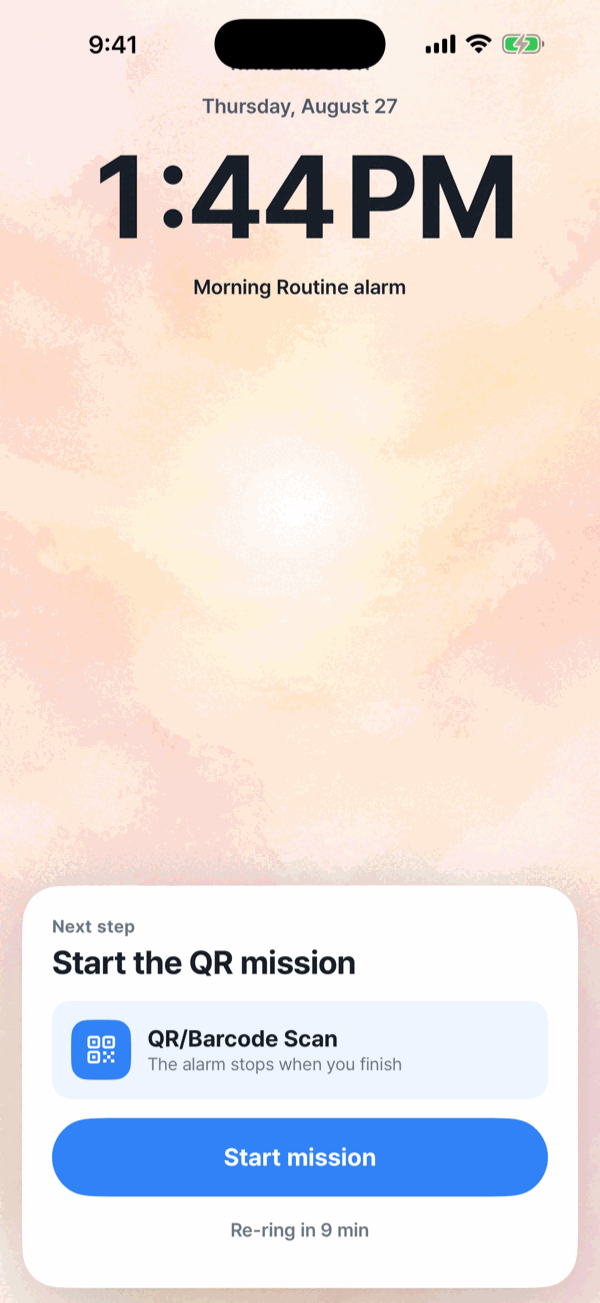
A normal alarm needs one tap on Stop or Snooze, and that tap can happen half-asleep. A mission alarm asks for something else: scanning a code in another room, solving a problem, standing up and moving. You cannot do those with your eyes closed.
Every AlarmK alarm keeps repeating until you turn it off, even one without a mission. It is not a notification that chimes once.
Set it up step by step
- Install AlarmK and allow System alarm (AlarmKit), so alarms ring through Silent mode and Focus.
- Choose a first mission that ends away from the bed: QR/barcode scan or NFC tag, with the code or tag in the bathroom or the kitchen, or Find an object with objects registered in other rooms.
- Add a second mission that wakes up your mind, such as Math problem or Typing. One alarm takes up to five missions, done in order, and keeps ringing until the last one is done.
- Run Try this sequence once in the evening. Nothing rings and nothing is recorded.
- Look through the settings below in Settings › Wake behavior, then save the alarm and check its next ring time.
Settings that keep the alarm going
- Re-ring duration. The alarm rings again until the mission is done, for 15 minutes by default.
- Ring again after Stop. If you press Stop on the Lock Screen before the mission is done, the alarm comes back after 5 seconds by default, or after 15 or 30 seconds or 1 minute.
- Turn volume back up. After you open the app and until the mission is done, a volume that was turned down goes back up within 10 seconds by default. You can choose 5, 15 or 30 seconds, or Off.
- Quiet by touch. During a mission the alarm goes quiet while you touch the screen and rings again after 10 seconds without a touch. This sets how many times touching can quiet it, 5 by default. After that it keeps ringing until the mission is done.
- Ringing escalation. If there is no response about 40 seconds in, the app restores full volume and strengthens vibration. It is on by default and only touches the app's own audio.
- Wake check. Rings once more 5 to 30 minutes after you finish the mission. A countdown appears first: tap I'm awake to skip it, or do the mission again when it rings. It is off by default.
While a mission alarm's morning is still going, the app will not let you switch that alarm off, delete it or change it. It says “This alarm's morning is still going. Finish the mission to change it.” Block deletion can also use Screen Time to hide the Delete option on the Home Screen while an alarm is ringing. That is one more layer against a sleepy finger, not an absolute block.
When a mission is genuinely out of reach
Emergency stop starts with a 30-second wait while the alarm keeps ringing. For most missions the backup is five math problems followed by 50 shakes; if your mission is math, it is 50 shakes followed by a memory task. Both stages must finish. If neither is possible, a last-resort route adds a 60-second wait and 30 confirmation taps. It is recorded as an emergency stop, not a completed mission. Turning off Allow emergency stop in the alarm editor hides the normal shortcut, but it still appears if a mission cannot start.
What it cannot do
- It cannot ring on a phone that is off or out of battery, or without the alarm permission. No alarm app can.
- It cannot make the first Lock Screen ring louder. iOS plays it at your Ringtone and Alerts volume. AlarmK's volume settings apply to the sound the app plays after you open it.
- It cannot tell whether you are awake. It knows that a mission was finished. Wake check is there for the mornings when finishing a mission and staying up are two different things.
- The quiet options are not for you. None (vibration only), Vibrate first and a long Gentle wake are for people who wake easily. If you sleep heavily, leave them off.
- It is an alarm clock. It does not measure or treat sleep.
An alarm is an aid, not a certainty. AlarmK is built to reduce the situations where an alarm cannot ring, but it cannot prevent physical failures: a powered-off phone, a drained battery, a denied permission. No alarm app can. For anything that really matters, set a backup alarm in the system Clock app too.
Frequently asked questions
Can AlarmK wake a heavy sleeper?
No alarm app can promise that. What AlarmK changes is how the alarm stops: instead of one tap, it asks for a mission, such as scanning a code in another room, and it keeps ringing until the mission is done. Settings such as Ring again after Stop, Turn volume back up and Wake check cover the usual ways an alarm gets switched off half-asleep.
What if I press Stop on the Lock Screen without waking up?
If you stop a mission alarm before its mission is done, it rings again after 5 seconds by default. You can change that to 15 or 30 seconds or 1 minute in Settings › Wake behavior › Ring again after Stop.
Can I turn the volume down to make it stop?
Not for long. After you open the app and until the mission is done, Turn volume back up brings a lowered volume back within 10 seconds by default. The first ring on the Lock Screen is played by iOS at your Ringtone and Alerts volume, which apps cannot raise, so keep that volume up.
Can I snooze a mission alarm?
Yes, if Snooze is on for that alarm. A snoozed mission alarm comes back after the snooze interval, and the mission still has to be done to end it. A wake check cannot be snoozed.
What if I really cannot finish the mission?
Emergency stop starts with a 30-second wait while the alarm keeps ringing. Then comes a backup sequence: five math problems and 50 shakes, or 50 shakes and a memory task if your mission is math. It is recorded as an emergency stop, not a completed mission.
Is AlarmK free?
Yes. AlarmK is free on the App Store with no in-app purchases, no ads and no account to create. It requires iOS 26 or later.
Free on the App Store · Requires iOS 26 or later
Written for AlarmK 1.8.2. Last updated 17 November 2026.