A QR Alarm That Gets You Out of Bed
Place a QR code or barcode somewhere away from your bed. When the alarm rings, walk to it and scan it to complete the mission.
AlarmK is a mission alarm app for iPhone, and the QR mission is one of its eight missions. The alarm keeps ringing until you scan the code you registered.
Free on the App Store. No in-app purchases, no ads, no account. Requires iOS 26 or later.
Free on the App Store · Requires iOS 26 or later
Allow System alarm (AlarmKit) before saving. In 1.6.0, new alarms cannot be saved or enabled without this permission. Existing alarms scheduled before denial may use ordinary notifications affected by Silent and Focus. Check Alarm readiness at the top of the app's Settings tab.
How the QR mission works
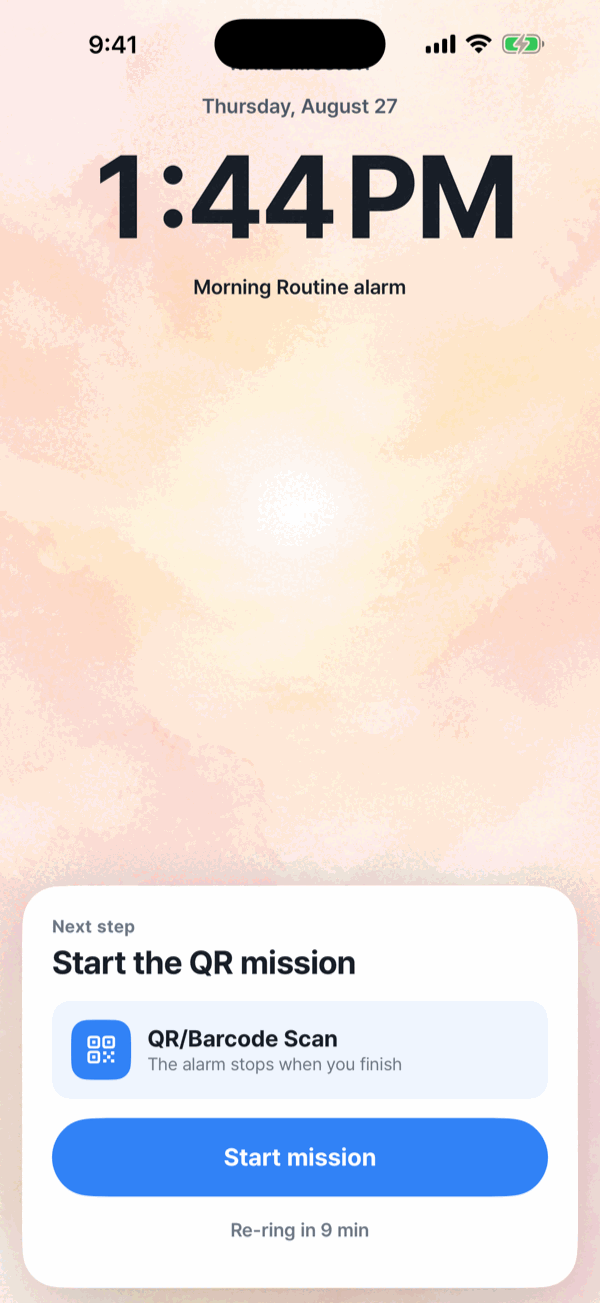
- In the alarm editor, tap Add mission, open QR/Barcode Scan and tap Register code. Use the code AlarmK generates, or register a barcode you already own — a milk carton, a book's ISBN, a delivery box. Then tap Add. Each alarm has its own code.
- If you used the generated code, print or save it and put it far from your bed.
- When the alarm rings, walk over and scan it.
The distance is the point. A code you can reach without sitting up does not ask anything of you; a code by the bathroom door does.
Where to put the code
The spots that work best are the ones already attached to something you do next:
- The bathroom mirror — it's on your way to washing your face.
- The coffee machine — it ties into the first routine of the day.
- The inside of the front door.
- A kitchen cupboard or your desk also works, as long as getting there means standing up and leaving the bedroom.
Put the code somewhere safe to reach half-asleep. Avoid stairs, balconies, doorways onto a road, a garage or anywhere near a vehicle, and anywhere you would have to climb or stretch to scan. You will be walking there before you are fully awake.
Use a barcode you already own
You do not have to print anything. Registering an everyday barcode — a milk carton in the fridge, a book's ISBN on the shelf, a delivery box — turns an object you already have into the mission target. Pick something that stays put and is not going to be thrown away.
Test it before the morning that matters
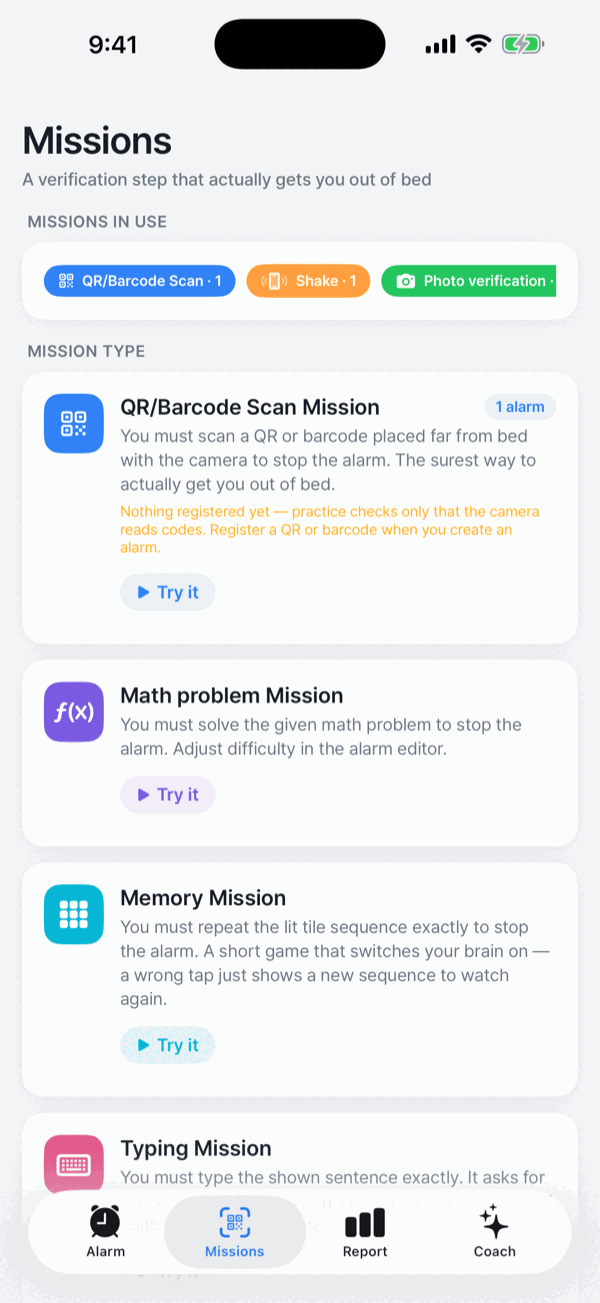
Every mission has a Try this mission button, on its page in the Missions tab and in the alarm editor. Nothing rings and nothing is recorded in your wake history. Use it from the alarm editor to confirm your printed code actually scans from where you stuck it, in the light you will actually have at that hour.
The code stays yours
The code's secret syncs through your iCloud Keychain, end-to-end encrypted. Move to a new iPhone and the printout you already have still works; turn iCloud Keychain off and it stays on that device only. Verification happens entirely on-device — the value never reaches our servers. Paper wears out, so print a spare.
If the code will not scan
- Check the camera permission and the light on the code. There is a torch button on the scanner screen.
- Point it at a different code and you will see “Code doesn't match”. Tap Try again and it scans straight away.
- Lost or damaged the code? Open the alarm, tap the QR mission and tap Change to register a new one.
- Camera access is requested when you add the mission, or at the latest when you save the alarm — never while an alarm is ringing. If it is off when you save, the app warns you before saving.
In 1.6.0, Emergency stop starts with a 30-second wait while the alarm continues. For a QR mission, the backup sequence is five math problems followed by 50 shakes; both stages must finish. If the primary mission is math, the sequence is 50 shakes followed by a memory task. If neither sequence is possible, the last-resort route adds a 60-second wait and 30 confirmation taps. This is recorded as an emergency stop rather than a completed mission. You can turn off Allow emergency stop in the alarm editor to hide the normal shortcut; it still appears if a mission cannot start, such as when camera access is off.
An alarm is an aid, not a certainty. AlarmK is built to reduce the situations where an alarm cannot ring, but it cannot prevent physical failures: a powered-off phone, a drained battery, a denied permission. For anything that really matters, set a backup alarm in the system Clock app too.
Frequently asked questions
How does a QR alarm work?
You register a QR code or barcode, put it somewhere away from your bed, and when the alarm rings you walk over and scan it. The alarm keeps ringing until the code is scanned, so the mission ends where the code is rather than where you are sleeping.
Can I use a barcode I already own?
Yes. Instead of the code AlarmK generates, you can register a barcode you already have — a milk carton, a book's ISBN, a delivery box. Nothing needs to be printed in that case.
What happens if I cannot scan the code?
In 1.6.0, Emergency stop starts with a 30-second wait while the alarm continues. For a QR mission, the backup sequence is five math problems followed by 50 shakes; both stages must finish. If the primary mission is math, the sequence is 50 shakes followed by a memory task. If neither sequence is possible, the last-resort route adds a 60-second wait and 30 confirmation taps. This is recorded as an emergency stop rather than a completed mission. You can turn off Allow emergency stop in the alarm editor to hide the normal shortcut; it still appears if a mission cannot start, such as when camera access is off.
Can I change the QR code later?
Yes. If you lose or damage the code, open the alarm, tap the QR mission and tap Change to register a new one.
Is the code sent to your servers?
No. Verification happens entirely on-device — the value never reaches our servers. The code's secret syncs through your iCloud Keychain, end-to-end encrypted, which neither Apple nor we can read.
Does my printed code still work on a new iPhone?
Yes, if iCloud Keychain is on. The code's secret syncs through your iCloud Keychain, end-to-end encrypted, so the printout you already have still works. Turn iCloud Keychain off and the secret stays on that device only.
What if the scanner cannot read the code in the dark?
There is a torch button on the scanner screen. Also check the camera permission, and use Try this mission beforehand to confirm your printout can actually be scanned.
Written for AlarmK 1.6.0. Last updated 14 October 2026.